Pay for Others
Overview
Lets a rate payer pay a bill on behalf of another rate payer, by looking up that person's bills via their phone number and an OTP verification step.
Navigate to: Home → Quick Actions → Pay for others
Enter Rate Payer's Phone Number
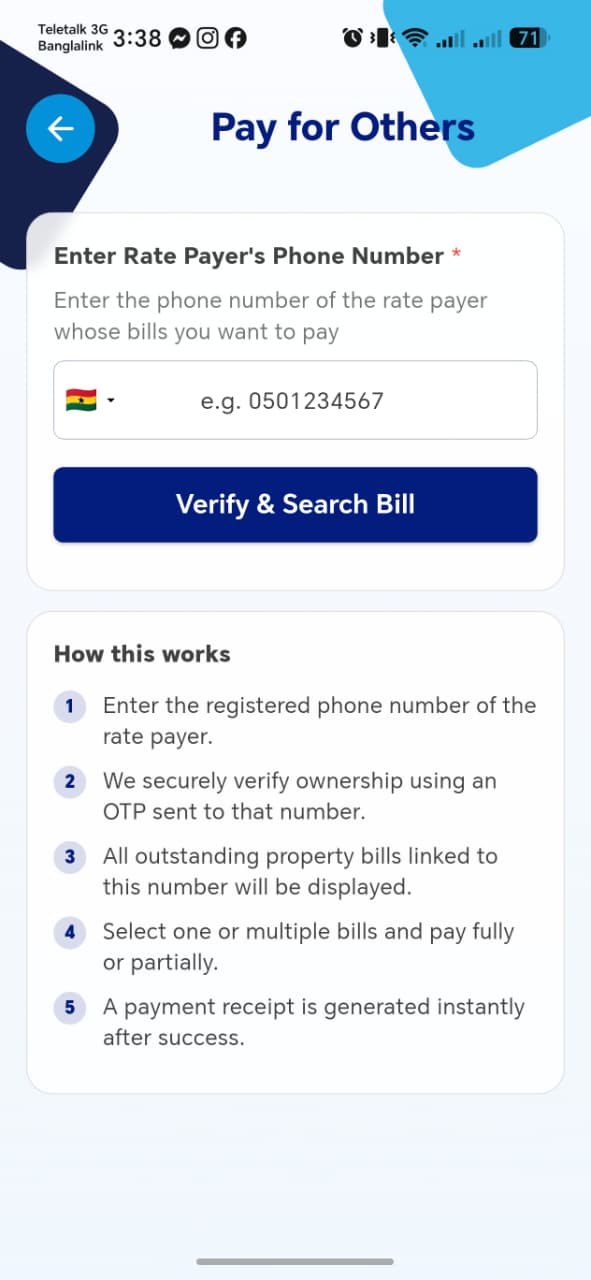
| Field | Required | Description |
|---|---|---|
| Rate Payer's Phone Number | Yes | Country code selector (defaults +233 Ghana) + number, e.g. 0501234567 |
Verify & Search Bill button starts OTP verification.
How this works
The screen documents its own flow, shown as a numbered list:
- Enter the registered phone number of the rate payer.
- iDARMS securely verifies ownership using an OTP sent to that number.
- All outstanding property bills linked to this number are displayed.
- Select one or multiple bills and pay fully or partially.
- A payment receipt is generated instantly after success.
Things to check
- A phone number that isn't registered in the system shows a clear error, not a silent failure or an empty result
- The payer (the person doing this flow) cannot pay for their own number here — or if they can, confirm that's intentional
Verify OTP
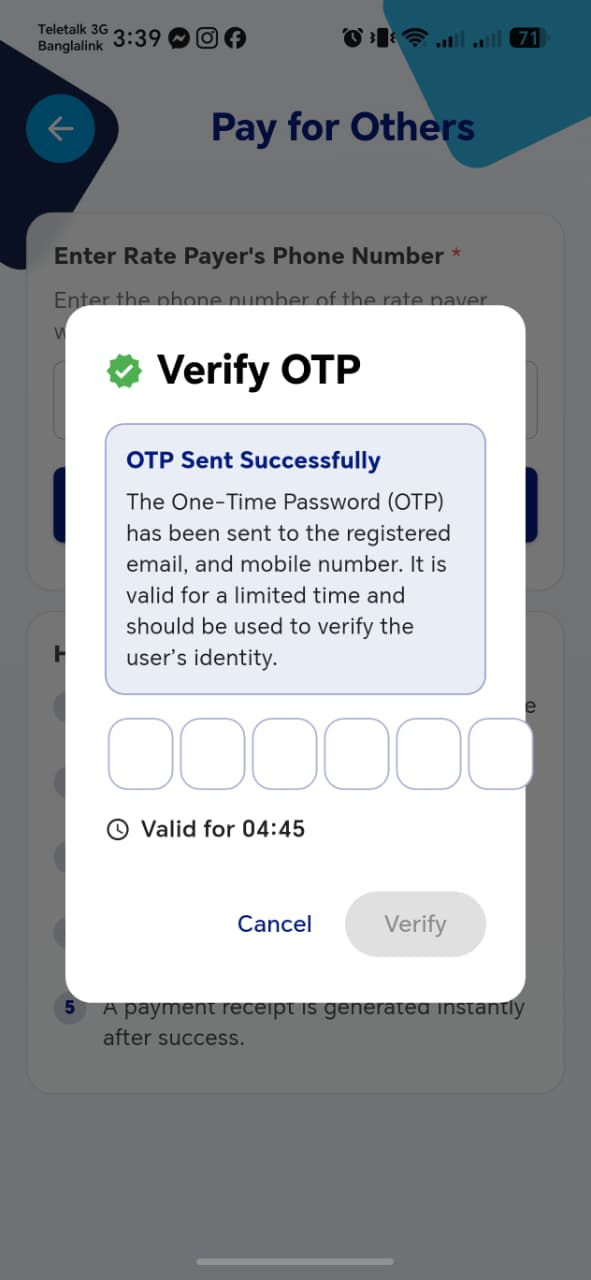
| Element | Description |
|---|---|
| OTP Sent Successfully notice | Confirms the OTP was sent to the rate payer's registered email and mobile number — not the person initiating this flow |
| 6-digit code input | One digit per box |
| Countdown timer | e.g. Valid for 04:45 |
| Cancel / Verify | Verify stays disabled until all 6 digits are entered |
Whose OTP is this?
Since the OTP goes to the rate payer being paid for, not the person paying, this only works if that person can access the rate payer's phone or email — worth confirming this is the intended design (e.g. a family member paying on someone's behalf who shares access) rather than a gap.
Things to check
- Entering an incorrect code shows a clear error and allows retry
- Verify stays disabled until all 6 digits are filled
- The code expires when the countdown hits zero, and expired codes are rejected
- Cancel returns cleanly to the phone number screen without side effects
Bill Search Results
Once verified, matching bills for that phone number are listed on the same screen (a Search Another button appears to look up a different number).
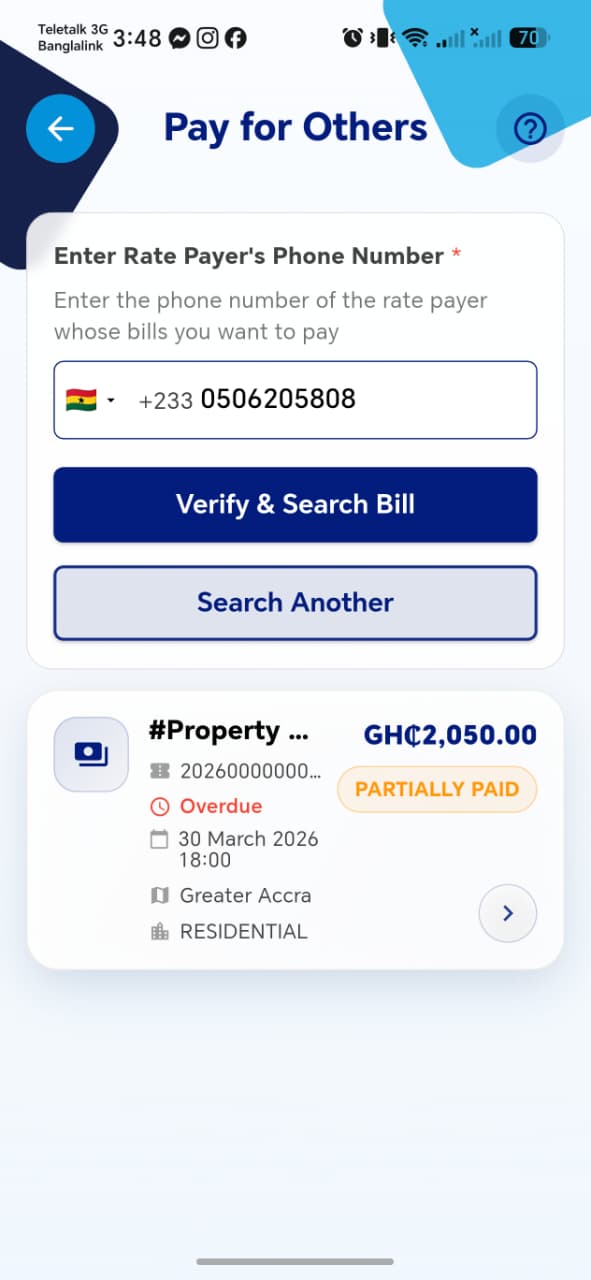
Each result card shows the same fields as a bill card on My Bill: Property/Bill ID, overdue flag, due date, region, property type, amount, and status badge.
Things to check
- If the rate payer has no outstanding bills, this is stated clearly rather than showing an empty list with no explanation
- Search Another clears the previous result and returns to a fresh phone number entry
Bill Details
Tapping a result opens a Bill Details bottom sheet.
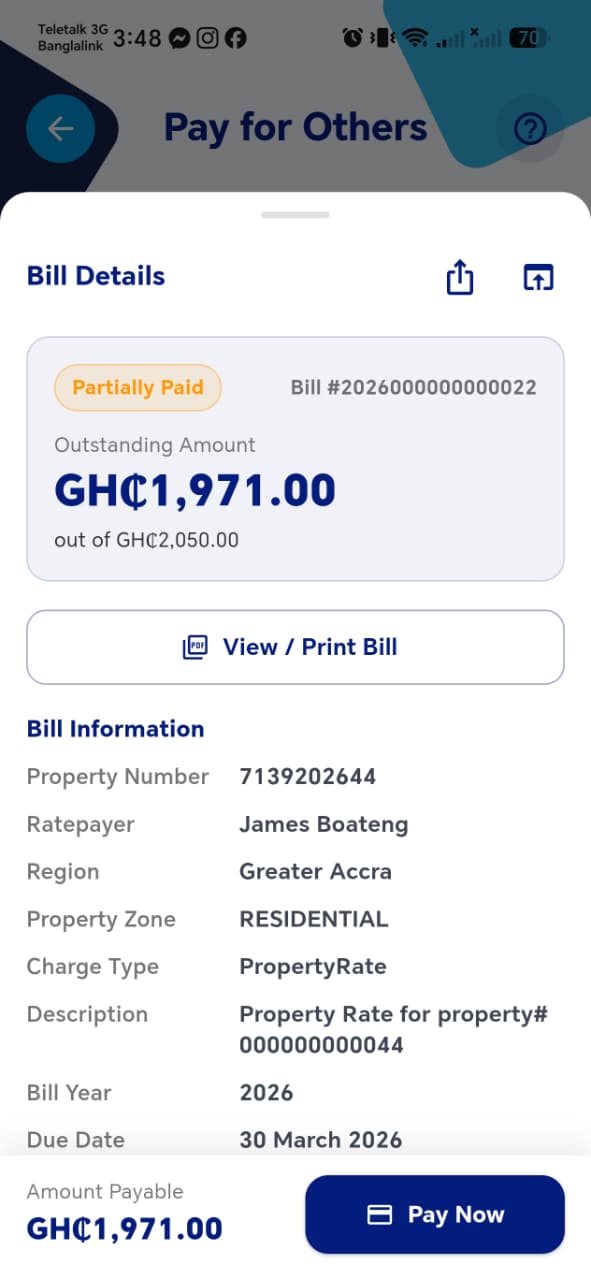
| Field | Description |
|---|---|
| Status badge | e.g. Partially Paid |
| Bill # | |
| Outstanding Amount | "out of" the total bill |
| View / Print Bill | Opens/downloads the bill document |
| Property Number | |
| Ratepayer | The bill owner's name — not the payer's |
| Region | |
| Property Zone | |
| Charge Type | e.g. PropertyRate |
| Description | |
| Bill Year | |
| Due Date | |
| Amount Payable |
Pay Now proceeds to Bill Pay.
Things to check
- Ratepayer name shown here is always the bill owner, never the person paying on their behalf
- View / Print Bill produces the correct bill for the correct property
Bill Pay & Payment Success
From here the flow matches paying your own bill — see Bill Pay and Payment Success for the full field breakdown.
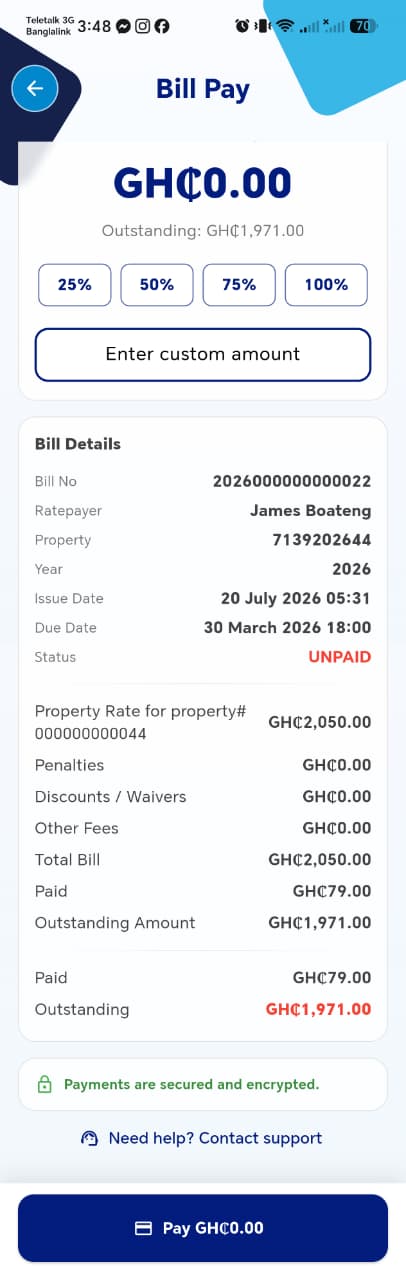
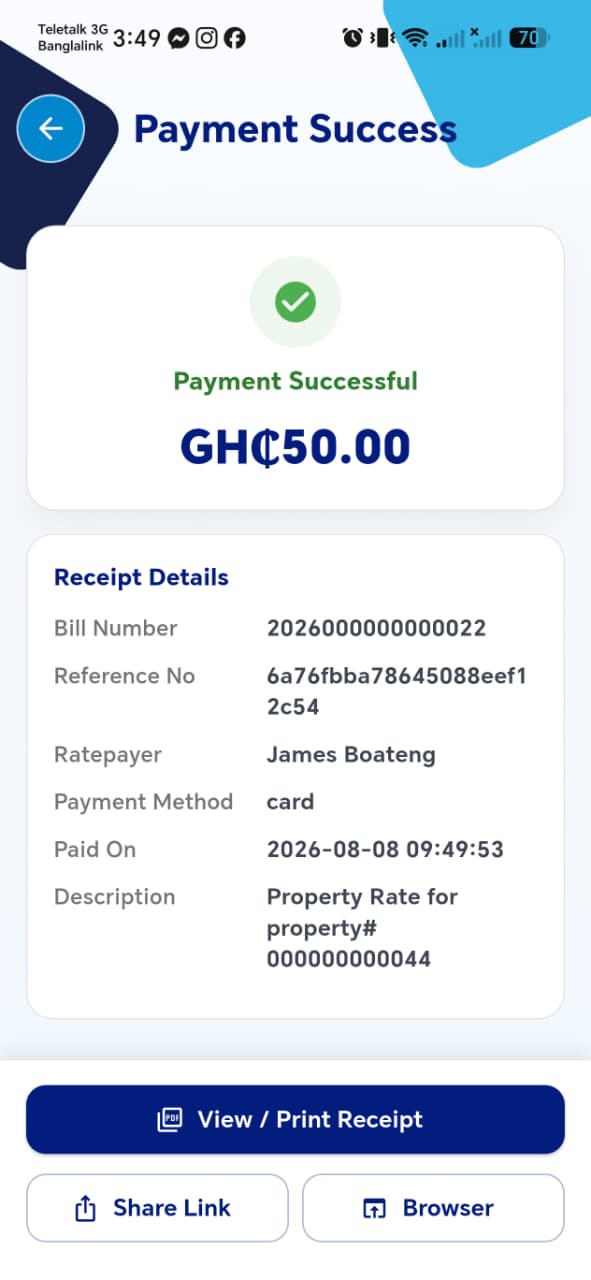
Things to check specific to this flow
- The receipt's Ratepayer field correctly shows the person the bill belongs to, while payment records (if visible anywhere) still track who actually initiated and paid — confirm both identities are captured somewhere, not just one
- After payment, the bill's status updates correctly both for the payer's view and if the actual rate payer logs into their own account
- This payment appears in the payer's own Payment History, correctly attributed to the property paid for, not confused with the payer's own properties