Property Management
Overview
The Property Management module lets rate payers view their registered properties in a card grid, inspect property details, and register new properties through a multi-step wizard with GIS coordinates, images, and supporting documents.
Navigate to: Sidebar → Properties or /properties
Property List
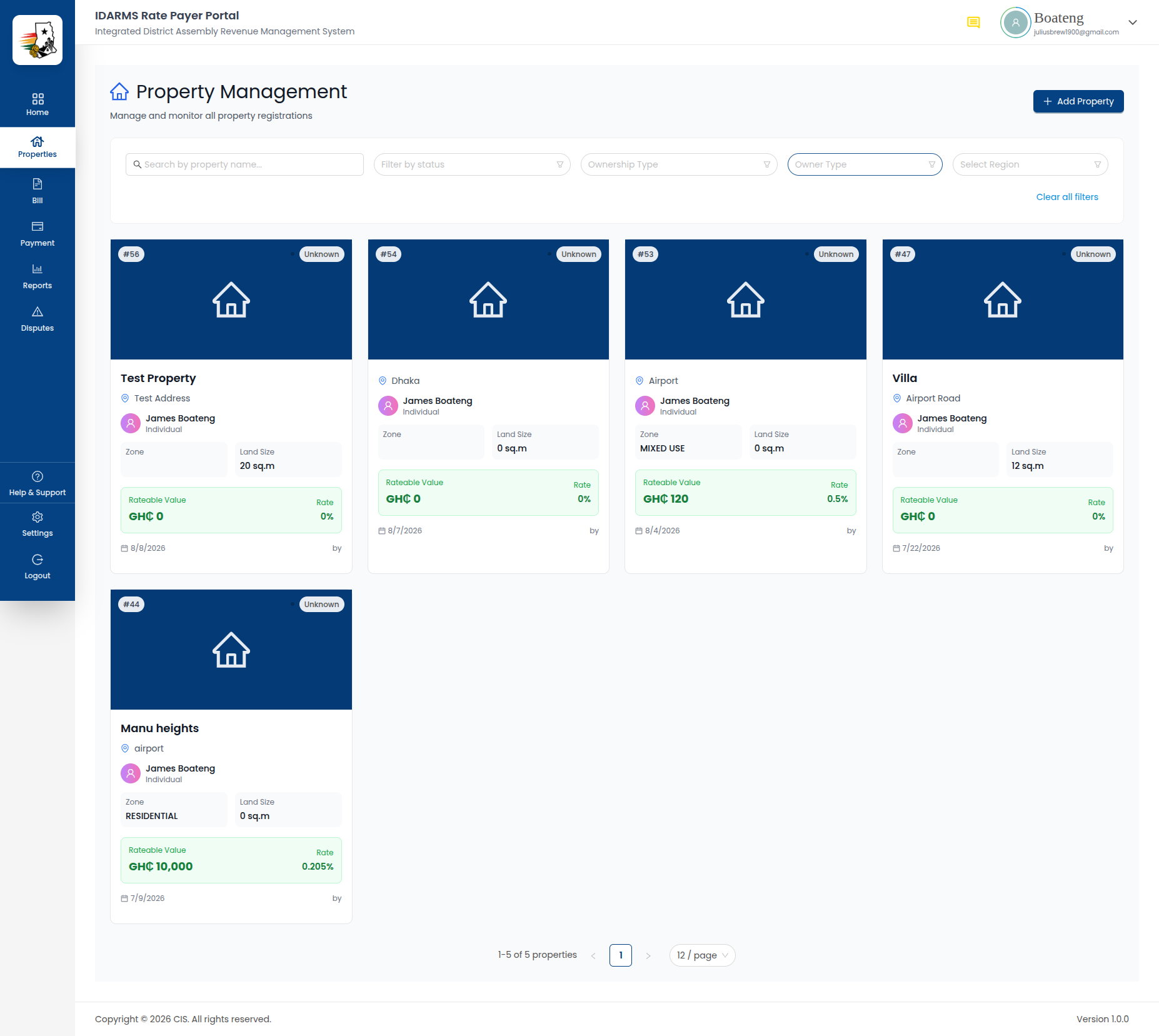
Properties are displayed in a card grid layout. Each card provides a summary of the property.
| Element | Description |
|---|---|
| Search bar | Search by property name, digital address, or reference number |
| Property count | Total number of properties (e.g. 3 Properties) |
| + Add Property button | Opens the Add Property wizard |
Property Card
| Field | Description |
|---|---|
| Property Name | Display name for the property |
| Property ID | Unique identifier, e.g. #7139202644 |
| Digital Address | Ghana Post digital address, e.g. GA-123-4567 |
| MMDA | Metropolitan/Municipal/District Assembly |
| Region | Administrative region |
| Ownership Type | Single or Multiple — shown as a badge |
| Status | Pending / In Progress / Approved — shown as a colored badge |
| Land Size | Property area in sq. m. |
Tapping a property card opens Property Details.
Things to check
- Property cards display all fields correctly with no truncated or missing data
- Search filters cards in real time as the user types
- Empty state shows a clear message when no properties exist
- Status badges use consistent colors (Pending = yellow, In Progress = blue, Approved = green)
- Card grid is responsive and reflows correctly on different screen sizes
Property Details
Opened by tapping a property card from the list.
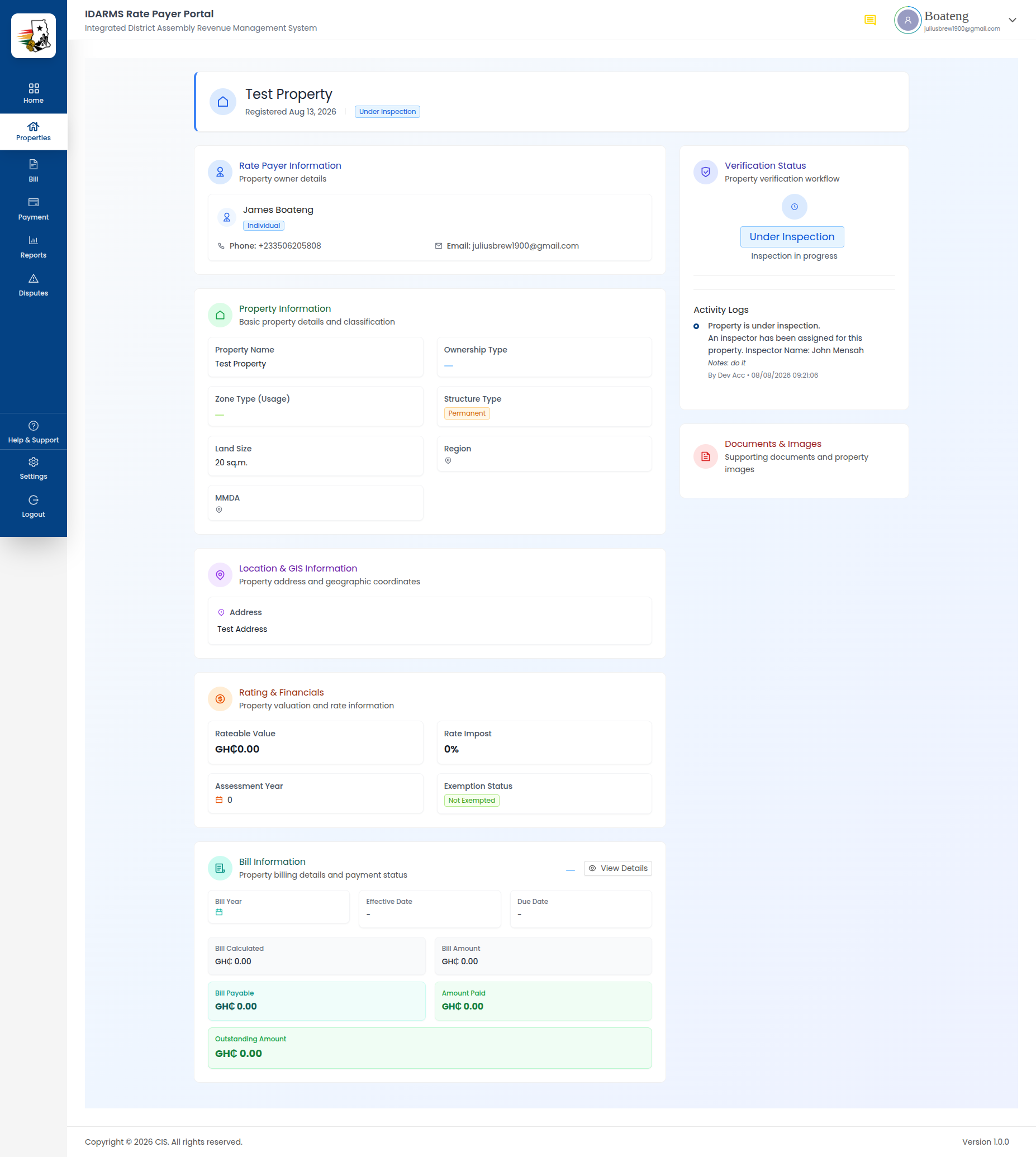
Header
| Element | Description |
|---|---|
| Property Name | Display name |
| Property ID | Unique identifier |
| Ownership Type badge | Single / Multiple |
| Structure Type badge | e.g. Permanent |
| Status badge | Pending / In Progress / Approved |
Bill Summary
| Field | Description |
|---|---|
| Bill Year | Current billing year |
| Bill Amount | Total billed amount |
| Bill Payable | Amount payable |
| Paid | Amount already paid |
| Outstanding | Remaining balance |
Location & Address
| Field | Description |
|---|---|
| Region | Administrative region |
| MMDA | Metropolitan/Municipal/District Assembly |
| Digital Address | Ghana Post digital address |
| Address | Full property address |
Property Details
| Field | Description |
|---|---|
| Land Size | Area in sq. m. |
| Assessment Type | e.g. Unassessed — changes once an agent assesses the property |
| Rateable Value | Assessed value for rating |
| Rate Impost % | Rate percentage applied |
| Minimum Rate | Minimum rate amount |
| Year | Assessment year |
| Exempted | Yes / No |
Rate Payer Details
| Field | Description |
|---|---|
| Type | e.g. Individual |
| Full Name | Rate payer's full name |
| Phone | Contact number |
| Contact email | |
| Present Address | Current residential address |
| Present Post Code | Postal code for present address |
| Permanent Address | Permanent residential address |
| Permanent Post Code | Postal code for permanent address |
Property Images / Supporting Documents
Two sections at the bottom showing uploaded images and documents. These mirror what was uploaded during the Add Property wizard.
Things to check
- All values match exactly what was entered during property registration
- Bill Summary fields stay at
0/blank until a bill is issued, then update correctly - Assessment Type, Rateable Value, and Rate Impost % update once an agent assesses the property
- Images and documents uploaded during registration appear here correctly
- Back navigation returns to the property list without losing scroll position
Add Property
Navigate to: Sidebar → Properties → + Add Property or /properties/create
A 4-step wizard for registering a new property. A progress tracker at the top shows the current step, with completed steps marked with a check.
Step 1: Property Info
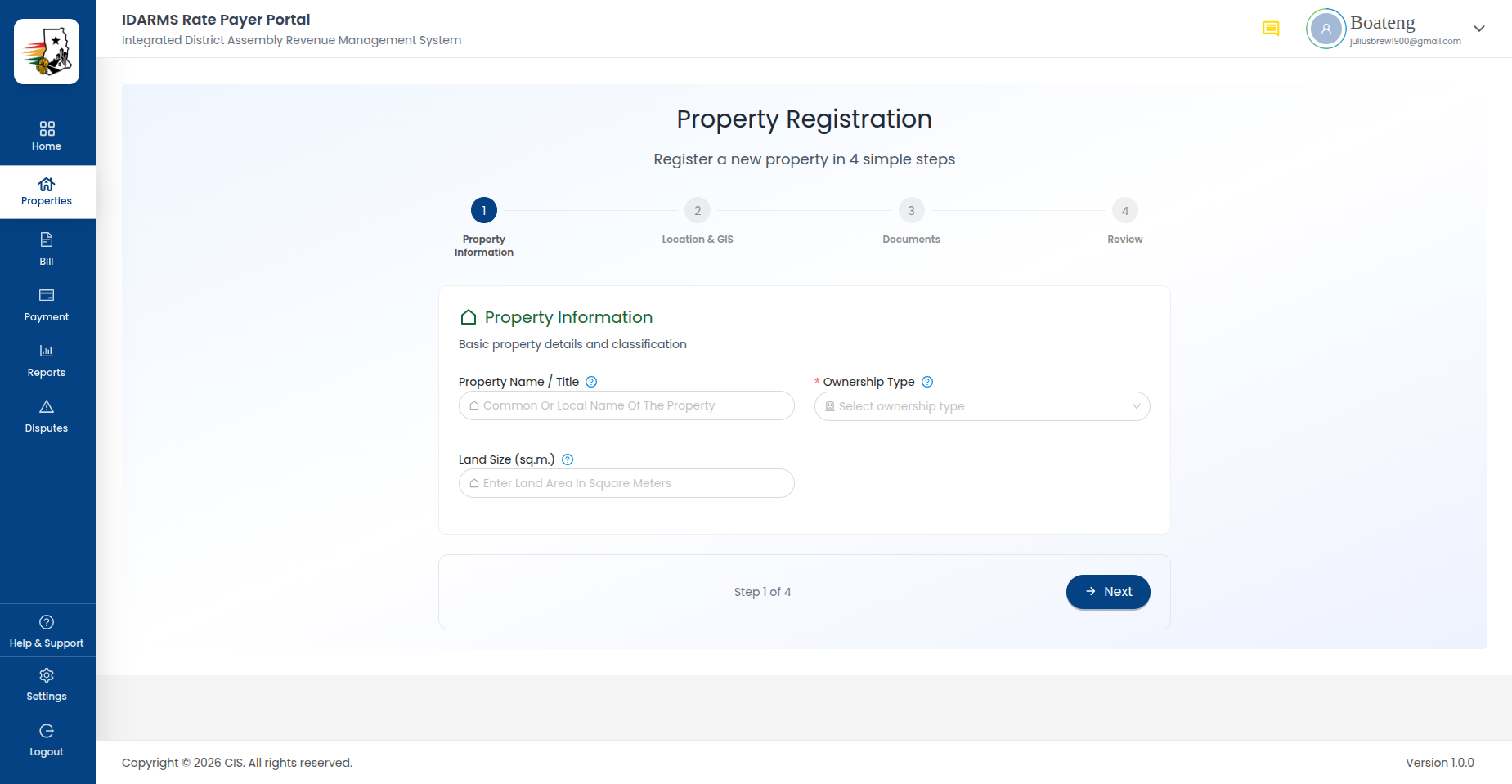
| Field | Required | Notes |
|---|---|---|
| Property Name | Yes | Display name for the property |
| Ownership Type | Yes | Single or Multiple |
| Land Size | Yes | Property area, in sq. m. |
Things to check
- Required fields block Next until filled
- Ownership Type selection is validated
- Land Size accepts numeric values only
Step 2: Location & GIS
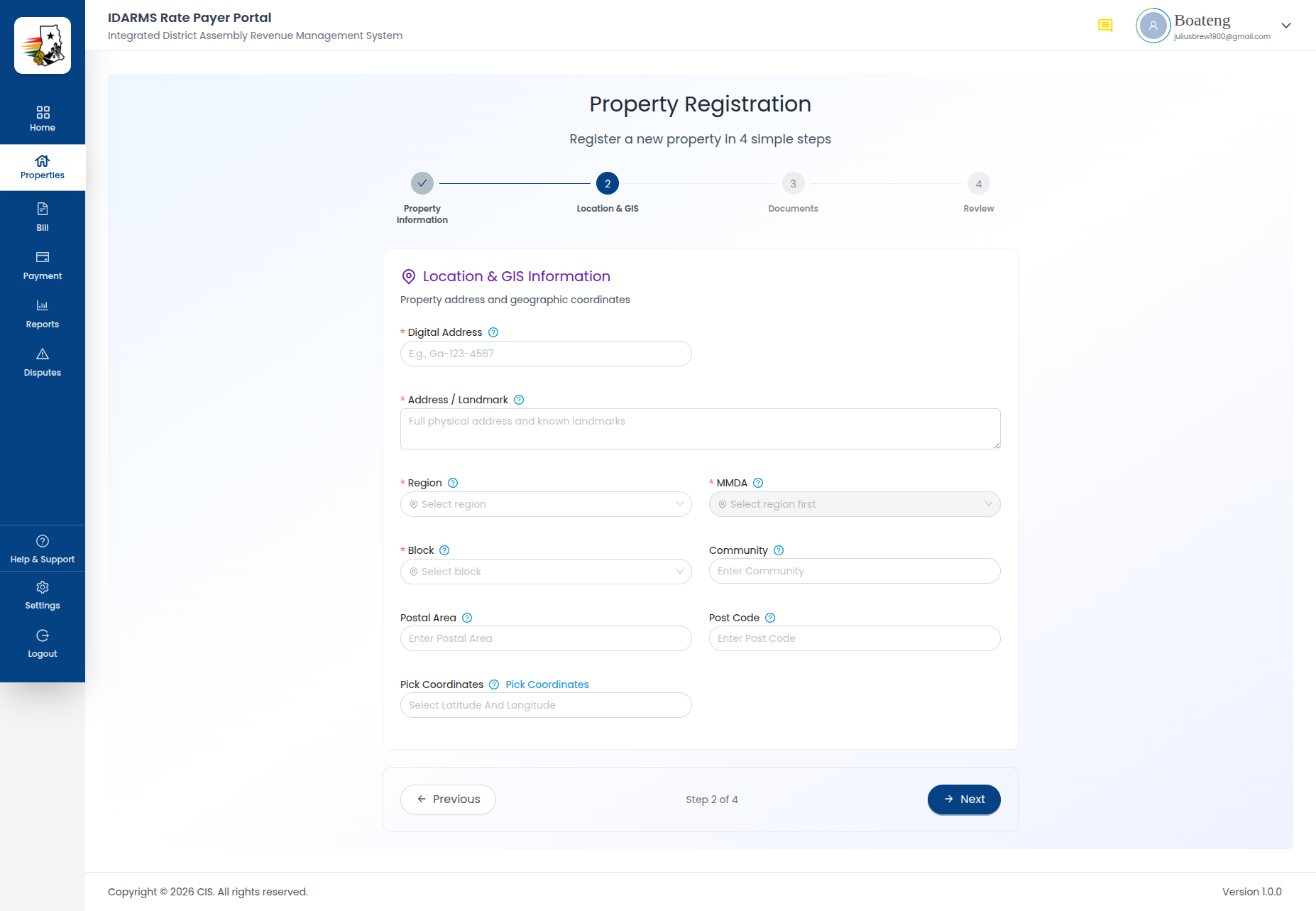
| Field | Required | Notes |
|---|---|---|
| Digital Address | Yes | Ghana Post digital address, e.g. GA-123-4567 |
| Address | Yes | Free-text address |
| Landmark | No | Nearby landmark |
| Region | Yes | Dropdown |
| MMDA | Yes | Dropdown — dependent on selected Region |
| Community | No | Free text |
| Postal Area | No | Free text |
| Postal Code | No | Free text |
| Pick Coordinates | No | Opens a picker to set Latitude/Longitude |
Things to check
- MMDA options change based on the selected Region
- Digital Address format is validated
- Pick Coordinates correctly populates the Latitude/Longitude field
- Required fields (Digital Address, Address, Region, MMDA) block Next until filled
- Optional fields can be skipped without blocking progress
Step 3: Documents
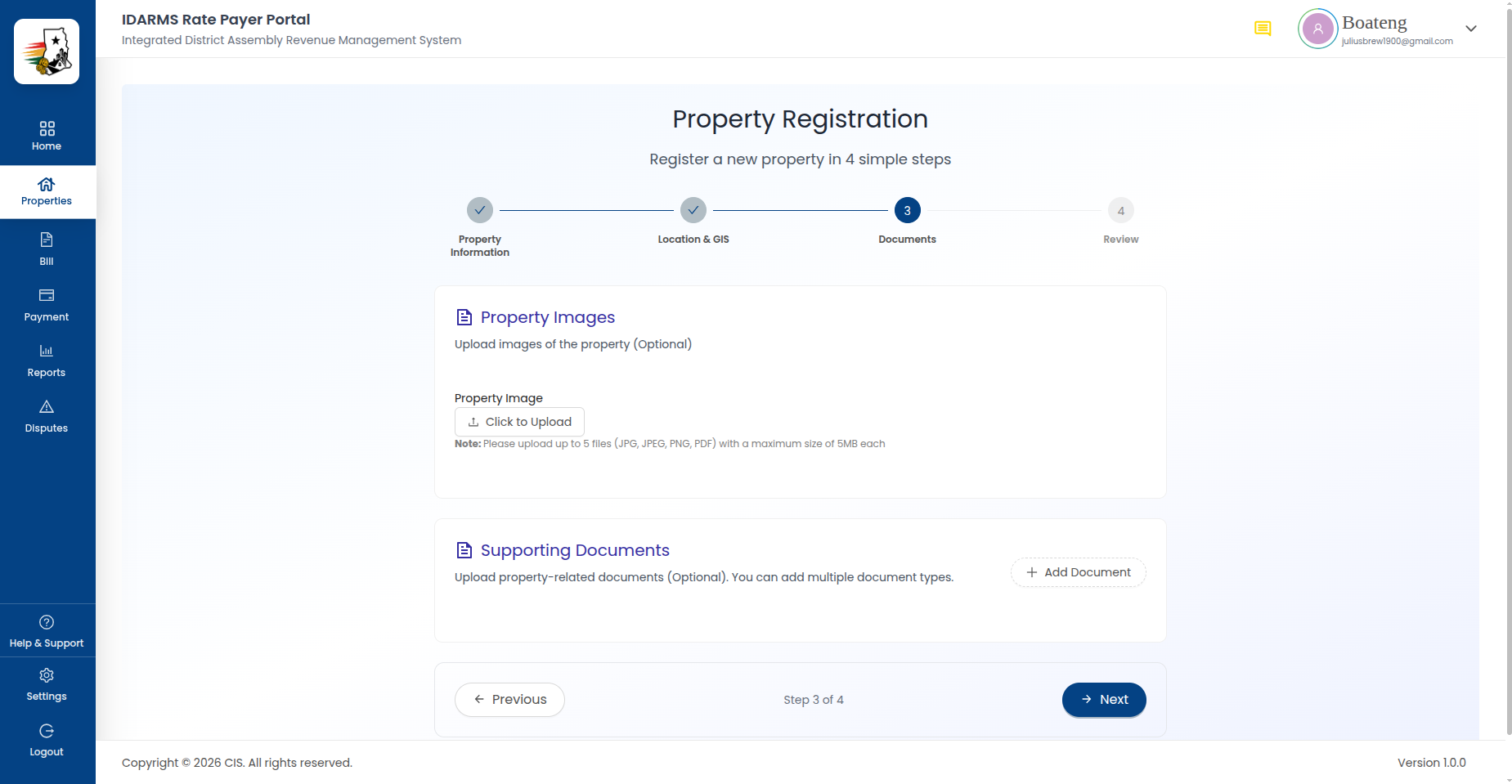
Property Images
| Element | Description |
|---|---|
| Choose Images button | Upload property images — JPG, PNG, max 10MB each |
| Empty state | "No images uploaded yet" until at least one image is added |
Rate Payer Documents
Each document block has:
| Element | Description |
|---|---|
| Document Name dropdown | Select document type (e.g. Ownership Proof, Land Deed) |
| Required notice | "This document is required and cannot be changed" |
| Upload options | Drag & drop, Choose (file picker), or Camera |
| Supported formats | JPG, PNG, PDF — max 10MB per file |
| + Add document button | Attach additional document types |
Things to check
- Image upload rejects files over 10MB and unsupported formats with a clear error
- Required documents (Ownership Proof, Land Deed) must be uploaded before proceeding
- Camera capture works and the resulting photo attaches correctly
- + Add document lets you attach additional document types
Step 4: Review
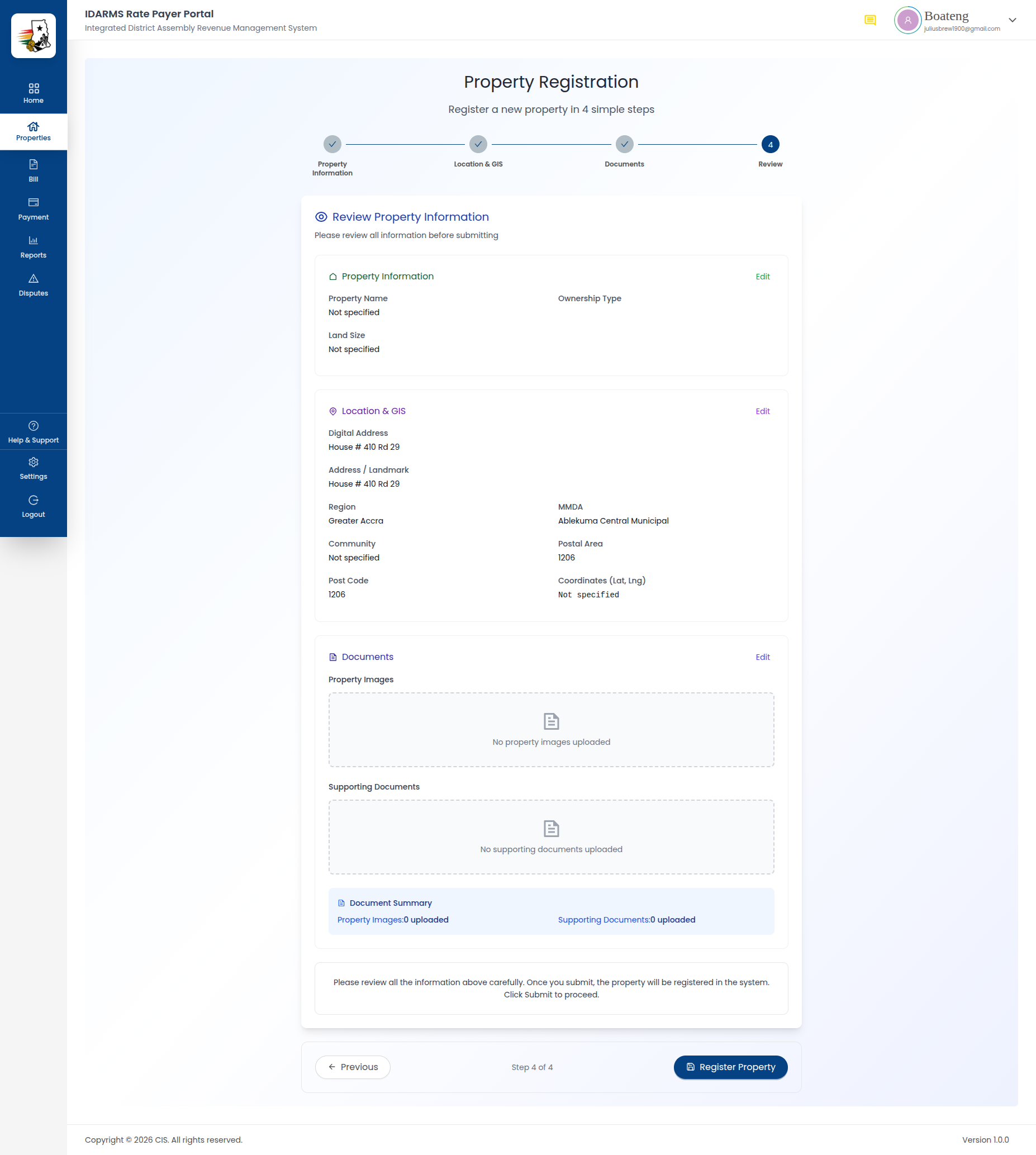
Summarizes everything entered across the previous three steps for a final check before submission.
| Section | Shows |
|---|---|
| Property Information | Property Name, Ownership Type, Land Size |
| Location & GIS | Digital Address, Address, Landmark, Region, MMDA, Community, Postal Area, Postal Code, Coordinates |
| Documents | File count for Property Images, Ownership Proof, Land Deed |
Each section has its own Edit link that jumps back to that step without losing data from the other steps.
Things to check
- Edit on each section returns to the correct step, and changes are reflected back on Review
- All entered values display accurately — blank optional fields show as empty
- Previous navigates back a step without losing entered data
- Submit is disabled or shows a clear error if required data is missing
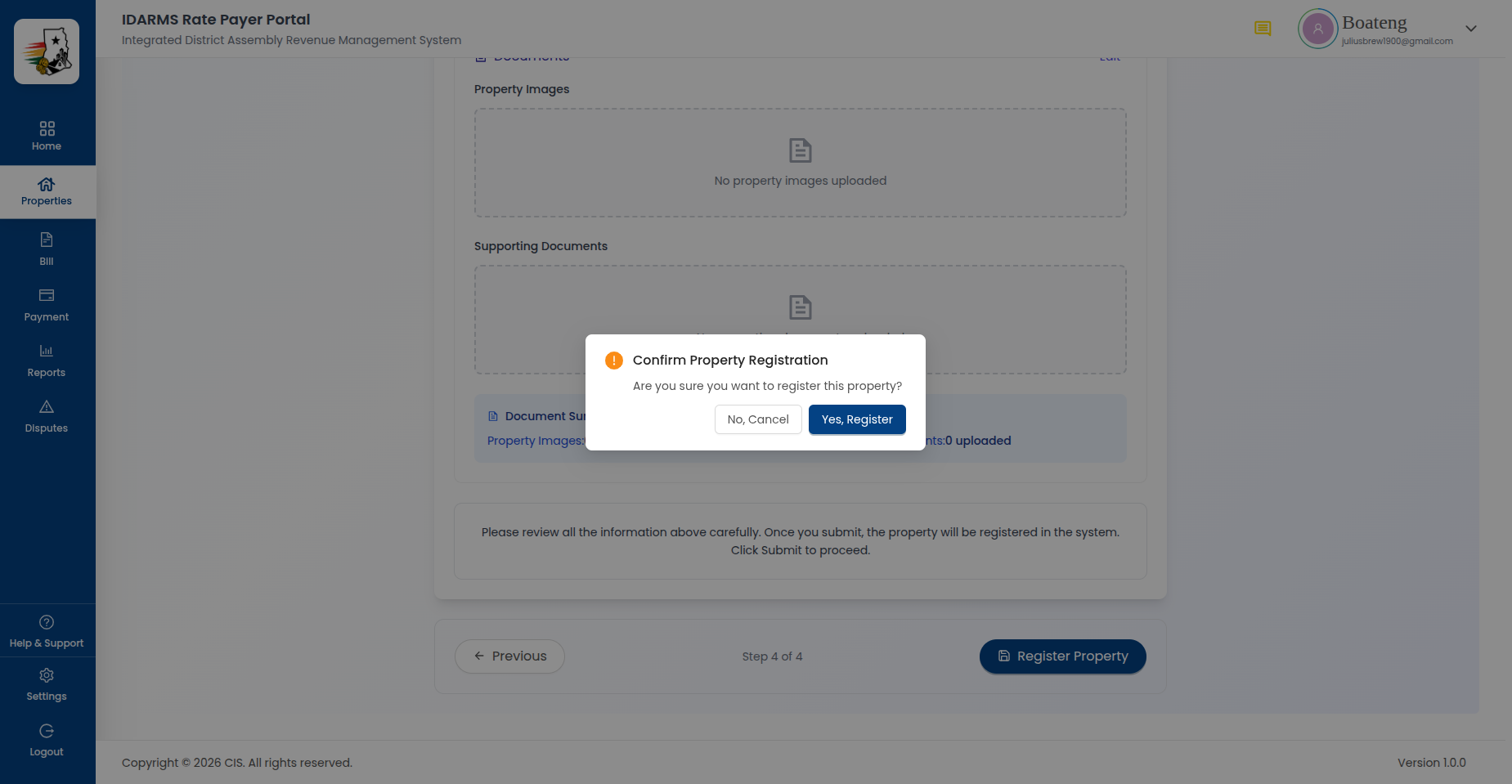
- After submission, a success message confirms the property was added
Submission Result
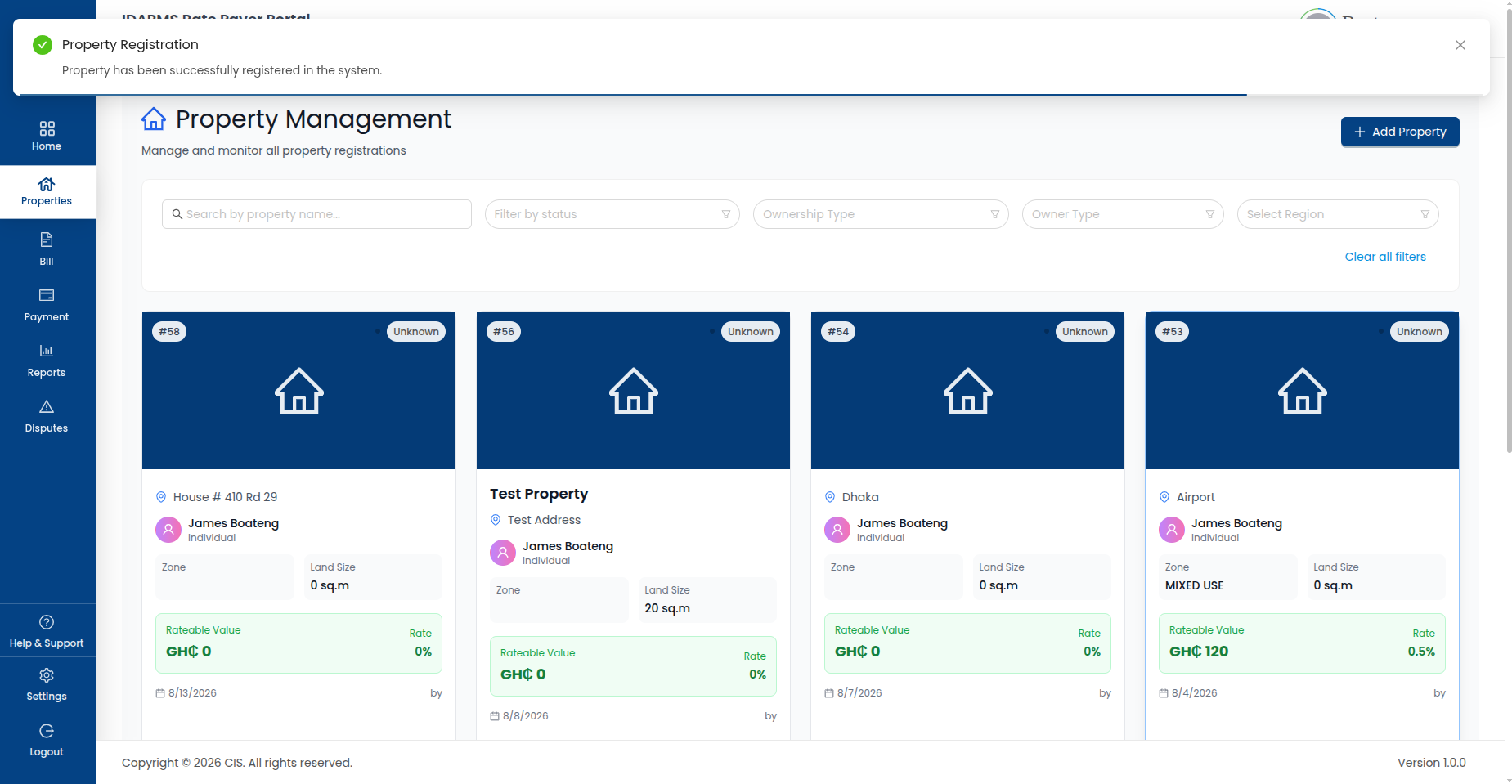
After tapping Submit, a success message confirms the property was added and explains that an agent will follow up to complete verification. The new property immediately appears in the property list with a Pending status.
Things to check
- The new property appears in the list immediately, without a manual refresh
- It starts with status
Pendingand the correct ownership type badge - The property ID is unique and correctly generated
- Property details match exactly what was entered during registration