Home Dashboard
Overview
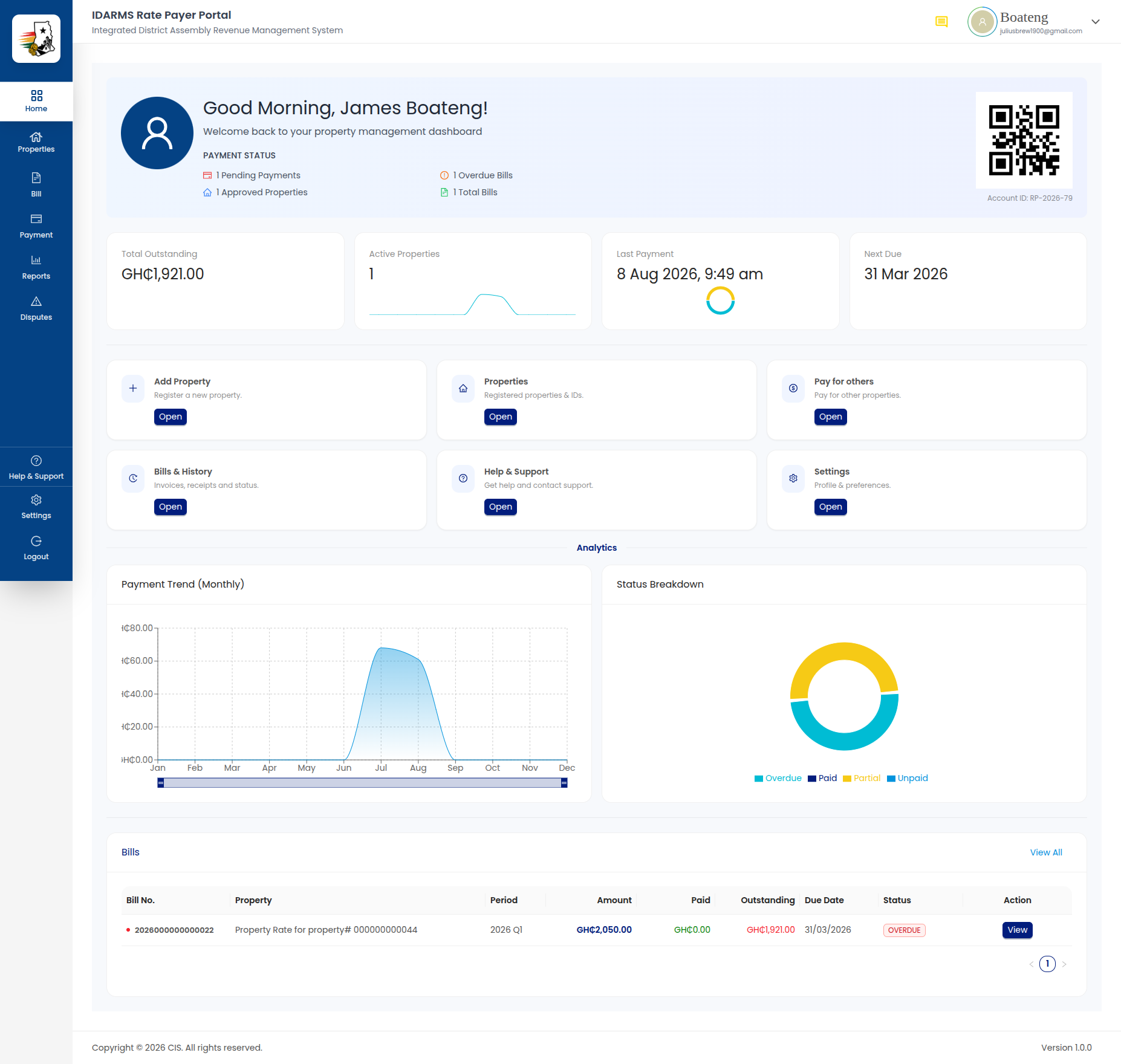
The Dashboard is the landing page after login. It provides the Rate Payer with an at-a-glance view of their financial status, quick action shortcuts, payment analytics, and a recent bills table.
Navigate to: Sidebar → Home or /dashboard
Profile Completion Alert
New or incomplete profiles may see a banner prompting them to complete their profile information. This alert sits at the top of the dashboard and links to the Settings page.
Things to check
- The alert only appears when the profile is genuinely incomplete
- Clicking the alert navigates to the Settings page
- Dismissing the alert does not permanently hide it if the profile is still incomplete
Welcome Section & QR Code
The dashboard header includes a welcome message with the user's name and a QR code that can be scanned for quick identification.
| Element | Description |
|---|---|
| Welcome message | Greets the user by name |
| QR code | Scannable code linked to the user's rate payer account |
| Year selector | Dropdown to filter dashboard data by year (e.g. 2026) |
Things to check
- Year selector filters all dashboard data (KPIs, charts, bills) to the selected year
- QR code renders correctly and is scannable
- Welcome message displays the correct user name
KPI Cards
Four key performance indicator cards summarize the rate payer's financial status:
| Card | Description |
|---|---|
| Total Outstanding | Sum of all unpaid bill amounts across properties |
| Active Properties | Number of properties registered under this rate payer |
| Last Payment | Amount and date of the most recent payment |
| Next Due Date | Date of the next upcoming bill payment deadline |
Things to check
- Total Outstanding matches the sum of unpaid amounts across all bills
- Active Properties count matches the actual number of properties in the property list
- Last Payment reflects the most recent successful payment, not pending or failed ones
- Next Due Date is correct and updates when bills are paid or new bills are issued
- All KPI values update after a payment is made or a new bill is issued without requiring a page refresh
Quick Actions
Six shortcut tiles for the most common actions:
| Action | Route | Description |
|---|---|---|
| Add Property | /properties/create |
Start the multi-step property registration wizard |
| Properties | /properties |
View all registered properties |
| Pay for Others | /bill/payother |
Pay a bill on behalf of another rate payer |
| Bills & History | /bill |
View bills and payment history |
| Help & Support | /help |
Access the help center |
| Settings | /settings |
Manage profile and security settings |
Things to check
- Each quick action tile navigates to the correct route
- Tiles are responsive and display correctly on different screen sizes
- The layout remains usable on mobile viewports
Analytics Charts
Two charts provide visual insights into the rate payer's payment activity:
Payment Trend (Area Chart)
A time-series area chart showing payment amounts over the selected year. The X-axis represents months, and the Y-axis represents payment amounts in GH₵.
Status Breakdown (Donut Chart)
A donut chart showing the distribution of bill statuses (Paid, Unpaid, Partial, etc.) across all properties.
Things to check
- Payment Trend chart data matches the actual payment history for the selected year
- Status Breakdown percentages add up to 100%
- Charts re-render correctly when the year selector is changed
- Charts handle zero-data states gracefully (no broken rendering)
Recent Bills Table
A table showing the 5 most recent bills with pagination for additional entries.
| Column | Description |
|---|---|
| Bill Number | Unique bill identifier |
| Property | Property ID or name |
| Amount | Total bill amount in GH₵ |
| Status | Bill status (e.g. Paid, Unpaid, Partial) |
| Due Date | Payment deadline |
| Action | Link to view bill details |
Pagination controls allow navigating through additional bills beyond the initial 5.
Things to check
- Table shows exactly 5 bills per page
- Pagination controls work correctly and load the next/previous set
- Bill amounts and statuses are accurate
- Clicking a bill row navigates to the correct Bill Details page
- The most recent bills appear first (sorted by date descending)
Account Summary Drawer
A slide-out drawer accessible from the dashboard providing a consolidated account summary.
| Section | Description |
|---|---|
| Total Billed | Sum of all billed amounts |
| Total Paid | Sum of all payments made |
| Total Outstanding | Remaining balance |
| Property breakdown | Per-property summary with individual bill/payment/outstanding figures |
Things to check
- Drawer opens and closes smoothly without layout shifts
- Summary totals match the KPI cards on the main dashboard
- Per-property breakdowns are accurate and expandable
- Drawer is accessible and usable on mobile viewports
Things to check
- Dashboard data refreshes when navigating back to it after making a payment
- All sections (KPIs, charts, table, drawer) show consistent data
- Loading states display while data is being fetched
- Error states display clearly if the dashboard API fails
- The year selector persists its selection across page navigations within the same session